
How to install Minecraft datapacks on your STIPE server
Browse and install datapacks from CurseForge or Modrinth, or upload your own ZIP through the current STIPE control panel. Follow the written steps, screenshots and troubleshooting tips.
By STIPE Support · 5 min read · Reviewed 16 Nov 2026
Watch the walkthrough
Follow the written instructions below for both installation methods, screenshots and troubleshooting.
Before you start
Datapacks are for Minecraft Java Edition. They can change recipes, loot, advancements, world generation and other gameplay. (Not to be confused for: Bedrock add-ons, resource packs, mods and Bukkit plugins)
- Choose a datapack that supports your server's Minecraft version. Read the author's instructions and install any required dependencies.
- Check the Active Server Profile shown above the settings menu. Datapacks belong to a world within that profile.
- Open Express Settings → Datapacks and check the World: name. In the example it is
world; yours may be different. The installer targets the current world. - For world-generation datapacks, follow the author's instructions about creating a new world. Installing one does not regenerate terrain you have already explored.
Method 1: browse and install a datapack
Open the STIPE Control Panel, find your server and click Settings.
Select More Modpacks Mods & Datapacks in the settings menu.

In the left sidebar, find Datapacks → Browse Datapacks. Choose CurseForge or Modrinth beneath it. Use the provider choices in the Datapacks group, as the separate Browse modpacks group installs whole modpacks.
Check the detected Minecraft version and the Minecraft version filter. Enter a pack name or gameplay keyword, then click Search. You can also change the category and sorting.
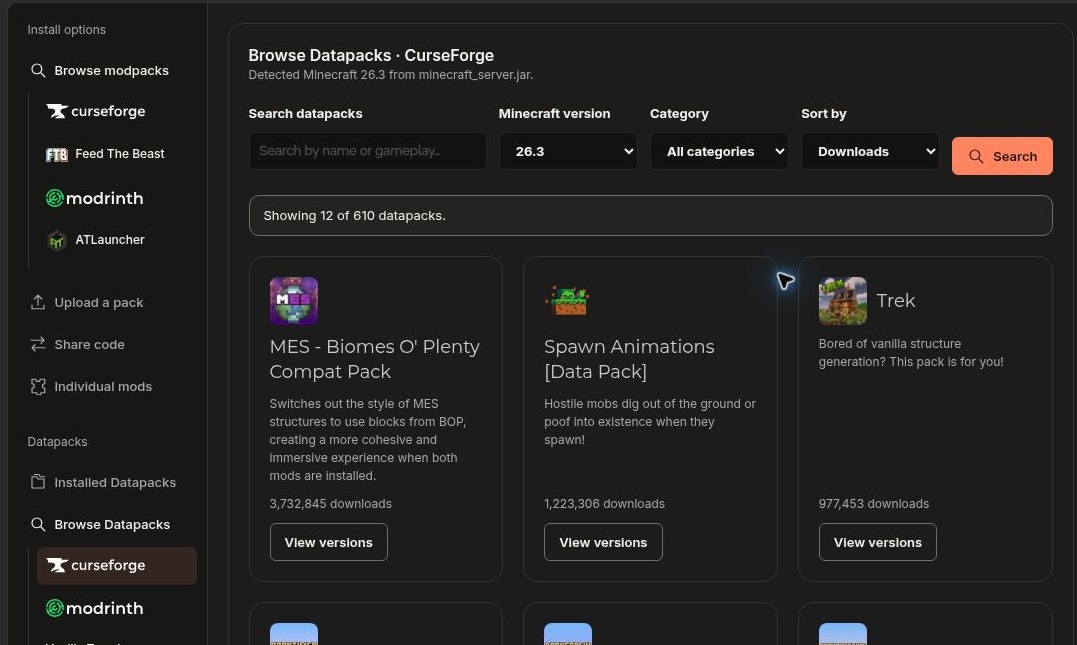
Click View versions on a pack. Check the Datapack file, Supported Minecraft releases and any dependency notice. View project page opens the author's information. Choose a compatible file; a warning or an override option does not mean an incompatible version will work.
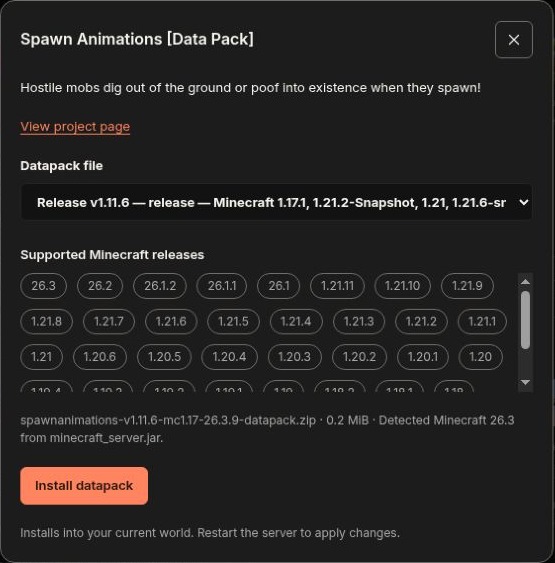
Click Install datapack and wait for completion. Open Installed Datapacks to check the result, then follow Restart and verify below. If the provider does not allow an automatic download, download the permitted file from its project page and use Method 2.
Method 2: upload a datapack ZIP
Download the correct datapack ZIP for your Minecraft version. Keep the ZIP intact; you do not need to extract a normal datapack before uploading it.
Open Settings → More Modpacks Mods & Datapacks → Upload Datapack. You can also use Settings → Express Settings → Datapacks.
Check the World: name. Drag your ZIP into the upload area or click Choose Files. The current uploader accepts non-empty ZIP files up to 100 MiB each.
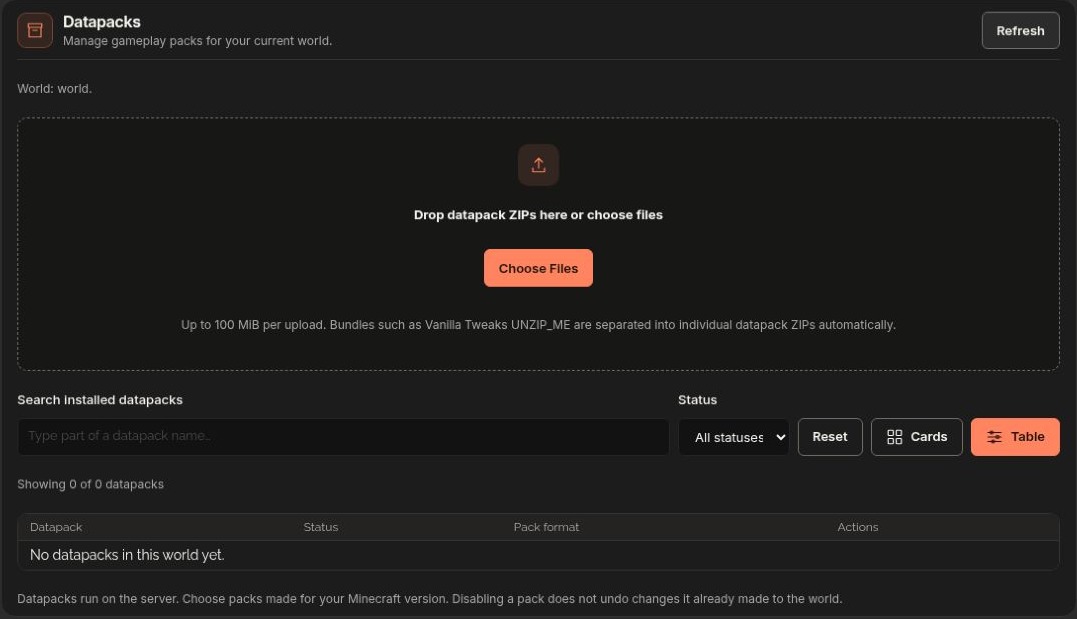
Wait for the completion message. Reaching 100% upload is not the final step: STIPE still transfers the file to your gamebox and checks the datapack. Keep the current profile selected while this finishes.
Open Installed Datapacks, or look at the list below the uploader in Express Settings. Click Refresh if needed. Follow the restart steps below.
Vanilla Tweaks: select the correct Minecraft version on Vanilla Tweaks, choose your datapacks and download the bundle. STIPE automatically separates supported UNZIP_ME bundles into individual datapack ZIPs, so you can upload the bundle directly.
Restart and verify
Check the pack in Installed Datapacks. If it is Inactive, click Activate. An Active label in this list describes the installed file's state; confirm that Minecraft has loaded it after restarting.
Return to your server controls and click Restart. If the server is stopped, click Start. Wait until startup has finished.
Open Console and enter this command without a leading slash:
datapack list enabledYou can instead run /datapack list enabled in Minecraft chat as an operator. Look for your pack in the enabled list, then test its feature using the author's instructions. The displayed name may be its ZIP or folder name.
Manage or remove datapacks
Use Installed Datapacks or Express Settings → Datapacks to search, filter Active/Inactive packs and switch between Cards and Table.
- Disable keeps the pack available for later activation.
- Activate makes an inactive pack available to load again.
- The trash button removes the installed pack.
Restart after changing the installed packs. Disabling or deleting a datapack does not undo changes it already made to the world. Follow the author's removal instructions, especially for world-generation packs.
If the datapack does not work
- It is missing from Installed Datapacks: check the active profile and World name, clear the search/status filters and click Refresh. Read any upload or installation error before trying again.
- The ZIP is rejected: make sure you downloaded a Java datapack rather than a mod JAR, resource pack or Bedrock add-on. A normal datapack contains
pack.mcmetaand adatafolder at its root. A download page, empty ZIP or extra wrapping folder may prevent recognition. - It appears in the panel but not in Minecraft: activate it if necessary, restart, and run
datapack list enabled. Check the console startup messages for the pack name, missing dependencies or compatibility errors. - Minecraft cannot load the world: stop the server and review the error before changing more files. Restore a missing required pack or mod, or use a compatible pack version. Removing world-generation content can leave a world dependent on missing data; contact support if you are unsure which pack is involved.
- The pack is enabled but nothing changes: check its setup commands and dependencies. Some features require specific conditions or newly generated chunks.
If you need help, contact STIPE Support with the datapack's project link, your Minecraft version and the exact error. You can also use STIPE Server Help on the My Servers page.